

Shipping by State allows you to charge different shipping fees based on the customer’s delivery state.
This method is suitable if your shipping fee varies depending on location. For example, you may want to charge a lower rate for West Malaysia and a higher rate for East Malaysia, or set different rates for selected states only.
To set up Shipping by State in your Store Default Profile:
- Go to Settings > Shipping and Delivery.
- Under Shipping Profiles, click your Store Default Profile.
- You will be directed to the Edit General Profile page.
- Under Shipping Method & Rates, select Auto Calculation by State.
- Click Add Rule.
- Fill in the required details.
- Click Add.
- Once completed, click Save Changes.
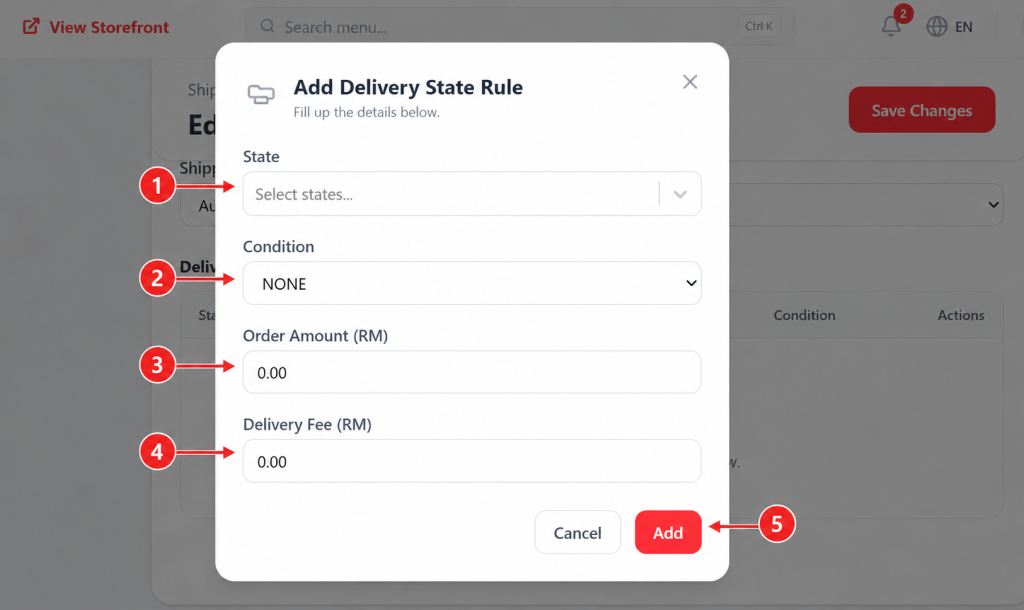
When adding a delivery state rule, complete the following fields:
| Field / Action | What to Fill in |
|---|---|
| 1. State | Select one or more states that will use the same shipping rate. |
| 2. Condition | Choose whether the rule should apply without condition, or only when the order amount meets a certain value. |
| 3. Order Amount (RM) | This field will appear only if you select a condition based on order amount. Enter the required amount here. |
| 4. Delivery Fee (RM) | Enter the shipping fee that will be charged to customers in the selected state(s). |
| 5. Add | Click Add to save the rule. To add another state rule, click Add Rule again and repeat the same steps. Once all rules are added, click Save Changes on the main page. |
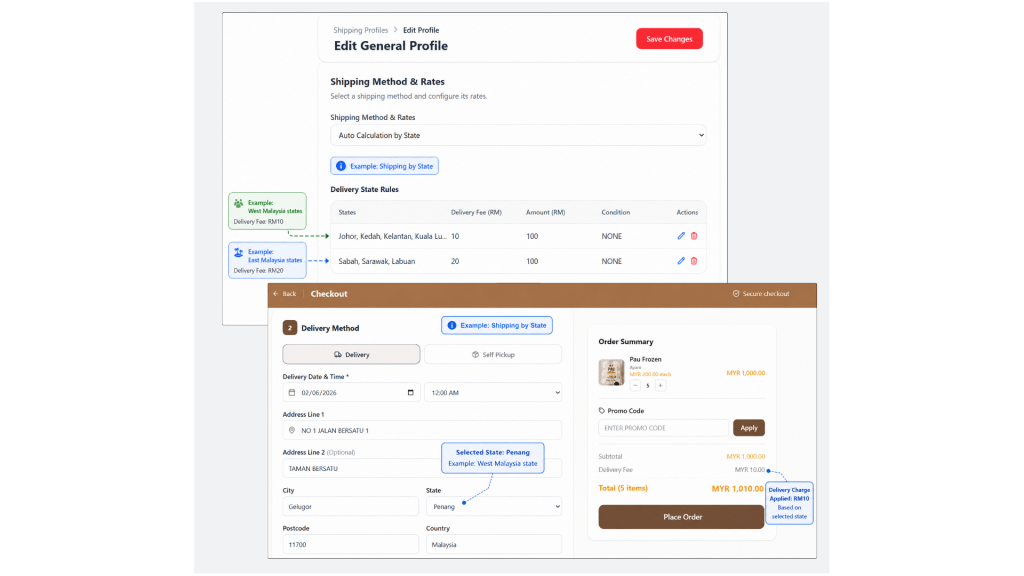
Helpful Tips
Shipping by State is a good option if:
- Your delivery fee differs by customer location
- You want to separate West Malaysia and East Malaysia rate
- You want to apply a different rate for selected states
- You want to create shipping rules based on state and order amount