

Simple Product Discount allows you to create a discount for selected products, categories, or all products in your store. You can choose whether customers need to enter a discount code or receive the discount automatically.
How It Appears to Customers #
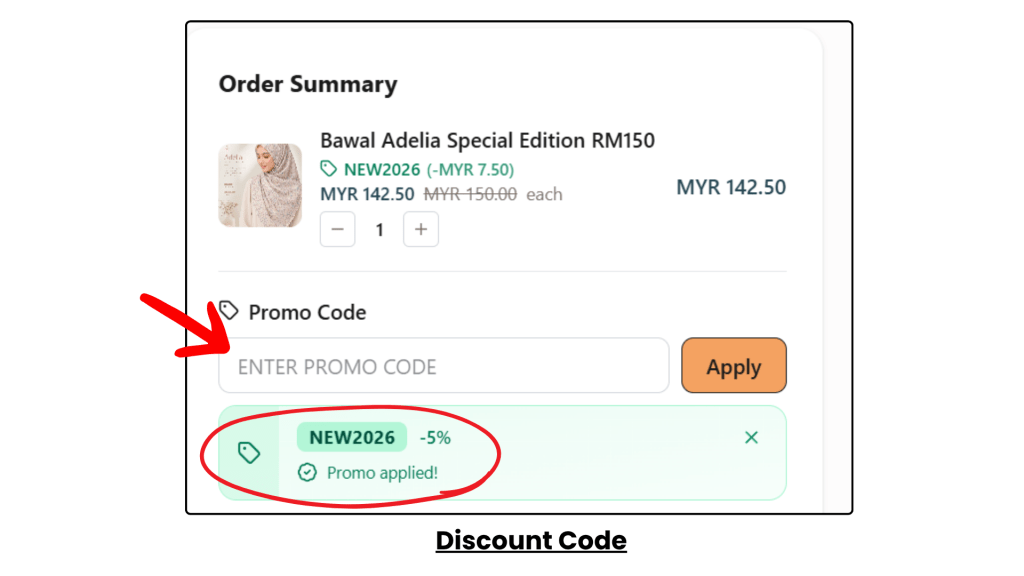
Discount Code : Customers must enter the promo code at checkout and click Apply to receive the discount.
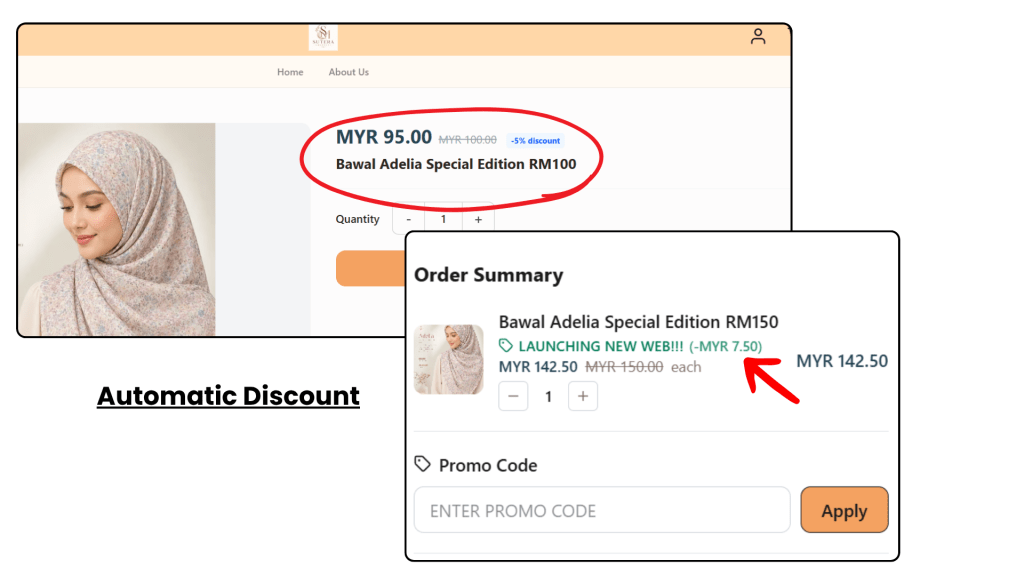
Automatic Discount : The discount is automatically applied to eligible products. Customers do not need to enter any promo code.
Setting Up the Discount #
Go to Promotions and select Simple Product Discount. Then complete the following settings:
1. Choose the Discount Method #
Under Method, choose how customers will receive the discount.
You can choose either:
- Discount code
Customers need to enter a discount code during checkout to redeem the discount.
Example: Customer enters WELCOME10 at checkout to get the discount. - Automatic discount
The discount will be applied automatically when the cart meets the promotion conditions. No discount code is needed.
Example: Customer adds the selected product to cart and the discount is applied automatically.
Enter a clear promotion title and make sure the promotion is Enabled.
2. Select the Discount Type #
Under Discount type, choose how the discount should be calculated.
You can choose one of the following:
- Percentage of : Use this if you want to give a percentage discount.
Example: Product price is RM50 > Discount is 10% > Customer gets RM5 discount. - Fixed amount off : Use this if you want to deduct a fixed amount from the product price.
Example: Product price is RM50 > Discount is RM5 > Customer pays RM45. - Fixed price per item : Use this if you want to set a special fixed price for the product.
Example: Original price is RM12. > You set the fixed price to RM8 > Customer pays RM8 for that item.
After choosing the discount type, enter the discount value.
3. Select Eligible Products #
Under Applies to, choose which products or categories this discount should cover.
You can choose:
- All products : The discount applies to every product in the cart.
- Specific products : The discount only applies to selected products or product variants.
After selecting this option, search and choose the products or variants you want to include. - Specific categories: The discount applies to all products under the selected categories. After selecting this option, search and choose the product categories you want to include.
Example:
If you select the “Drinks” category, all products under the Drinks category will be included in this discount.
4. Set the Minimum Requirement #
Choose whether customers need to meet a minimum spending requirement:
- No minimum
- Minimum purchase amount
5. Set Customer Eligibility and Usage Limits #
Under Customer eligibility, choose who can use this discount.
You can choose:
- Everyone : All customers can use this discount, including guest customers. Login is not required
- Members only : Only customers with a registered account can use this discount.
- Specific customer segments : Only selected customer groups can use this discount.
For example:
- Customers who never made a purchase : Suitable if you want to encourage first-time buyers.
- Customers who haven’t purchased recently : Suitable if you want to bring back customers who have not purchased for a while.
6. Set the Promotion Valid Date #
Set the promotion period using Valid From and Valid To.
- Valid From is the start date of the promotion.
- Valid To is the end date of the promotion.
The discount will only be available within this selected date range.
7. Choose Promotion Combinations #
Under Combinations, choose whether this discount can be combined with other promotions.
You can allow it to combine with:
Order-level discounts
Allow this product discount to be used together with an order discount.
Shipping discounts
Allow this product discount to be used together with free shipping or shipping discount promotions.
Example:
Customer gets 10% off selected products and also enjoys free shipping if both promotions are allowed to combine.
Once all details are completed, click Save Simple Product Discount.
Important: Test the promotion through your storefront before sharing it with customers. Make sure the discount amount, eligible products and promotion combinations work as intended.