

Product Add-on allow you to offer optional extra products that customers can add when purchasing a main product.
This is useful when you want to suggest related items, accessories, gift packaging, or extra products that can be purchased together with the main product.
When should you use Product Add-on? #
Use Product Add-on when the extra item is related to the main product and can be offered as an optional purchase.
Product Add-on are suitable for:
- Accessories
- Gift packaging
- Extra items
- Related products
- Optional upgrades
Let’s look at some real examples for better understanding:
Example 1 — Bakery / Cake shop
For example, if you are selling a birthday cake, you can offer candles, cake toppers, or a cake knife set as add-on. When the customer selects any add-on, the add-on price will be added to the total cart amount.
Example 2 — Gift shop
For example, if you are selling a gift box, you can offer a greeting card, ribbon, or paper bag as add-on. When the customer selects an add-on, the add-on price will be added to the total cart amount.
Example 3 — Stationery shop
For example, if you are selling a notebook, you can offer a pen set, sticky notes, or a pencil case as add-on. When the customer selects an add-on, the add-on price will be added to the total cart amount.
Example 4 — Skincare shop
For example, if you are selling a skincare set, you can offer a travel pouch, facial cotton, or mini cleanser as add-on. When the customer selects an add-on, the add-on price will be added to the total cart amount.
Before setting up Product Add-on #
Before setting up Product Add-on, make sure the add-on items are already created as products in your product list.
For example, if you want to offer candles and cake toppers as add-on, you need to create those items as products first. After that, you can select them as add-on products.
Steps to set Product Add-on #
Step 1: Go to Product
From the admin backend, go to menu Product.
Step 2: Select the main product
Choose the product that you want to offer add-on for.
Step 3: Find the Product Add-On section
Scroll down to the Product Add-On section.
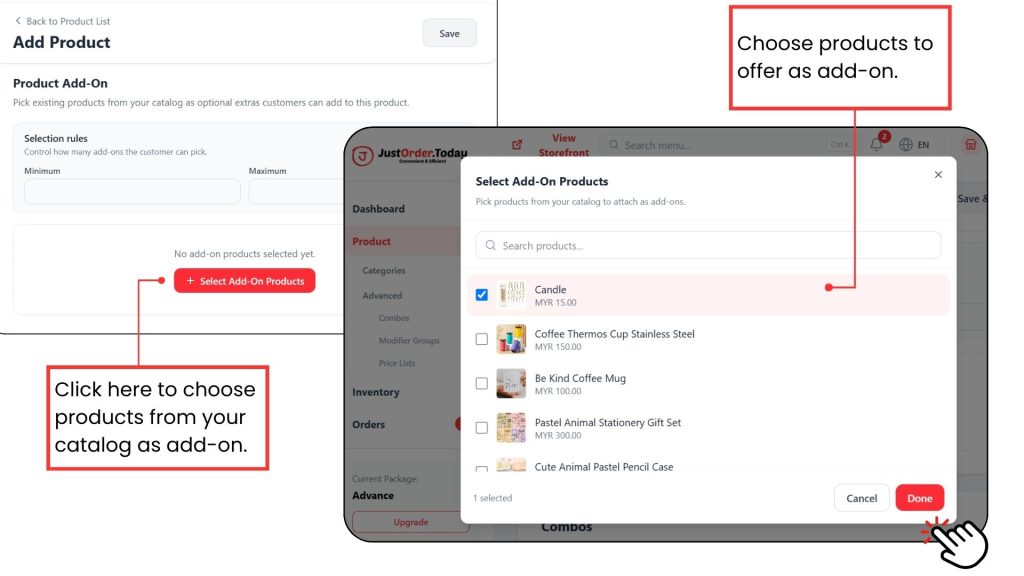
Step 4: Select products to be used as add-on.
Click Select Add-On Products, choose the products from your catalog, then click Done. The selected products will appear in the Product Add-On section.
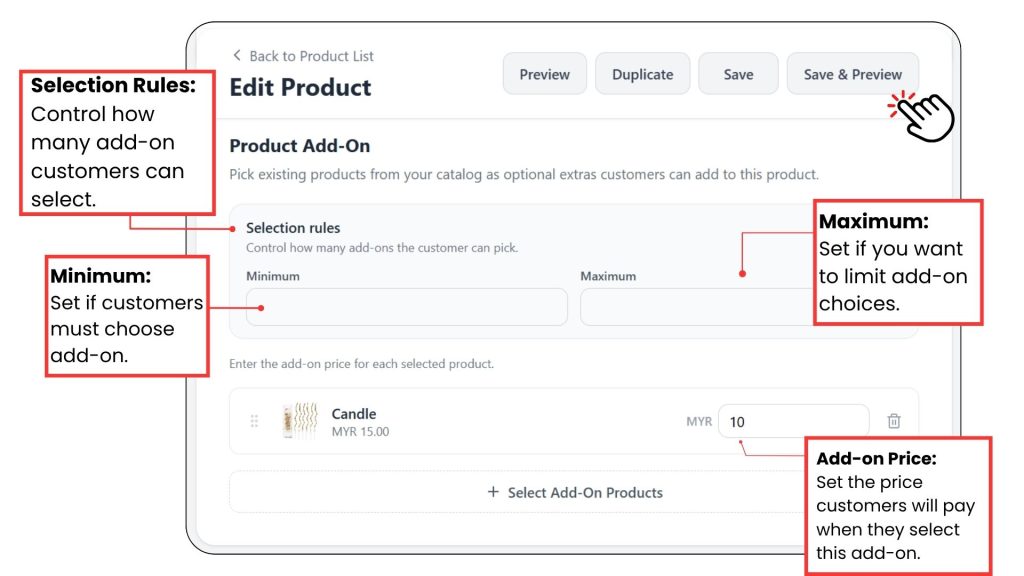
Step 5: Set the selection rules and add-on price
Set the Minimum and Maximum number of add-on customers can select. Next, enter the Add-on Price for each selected product. This price will be added to the cart total when the customer selects the add-on.
Click Save to apply the changes.
Advice: Hide add-on items from the product list
- If the add-on item is not meant to be sold separately, you can hide it from the product list.
- For example, if candles are only offered together with a birthday cake, you can hide the candle product from the storefront. Customers will not see it as a normal product, but they can still select it as an add-on when buying the cake.