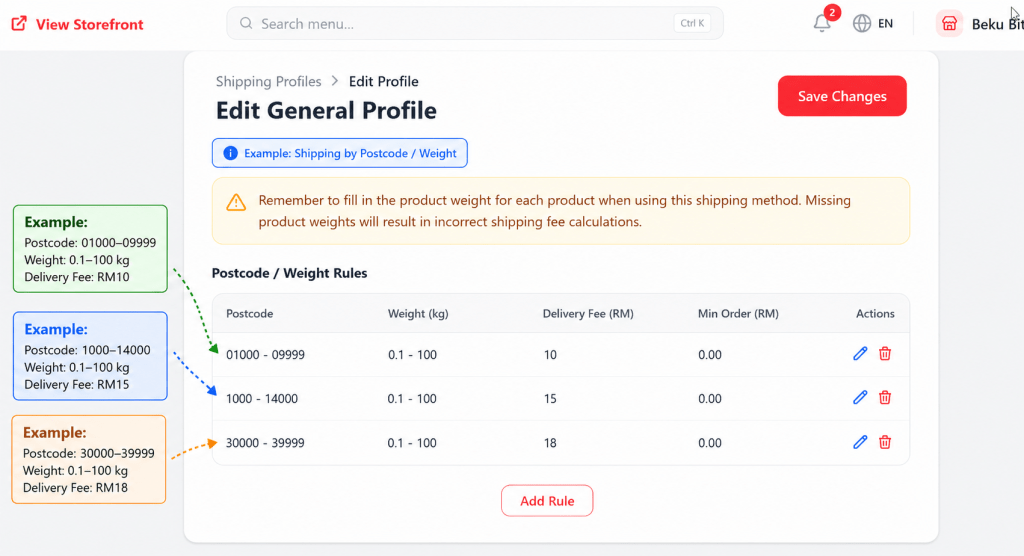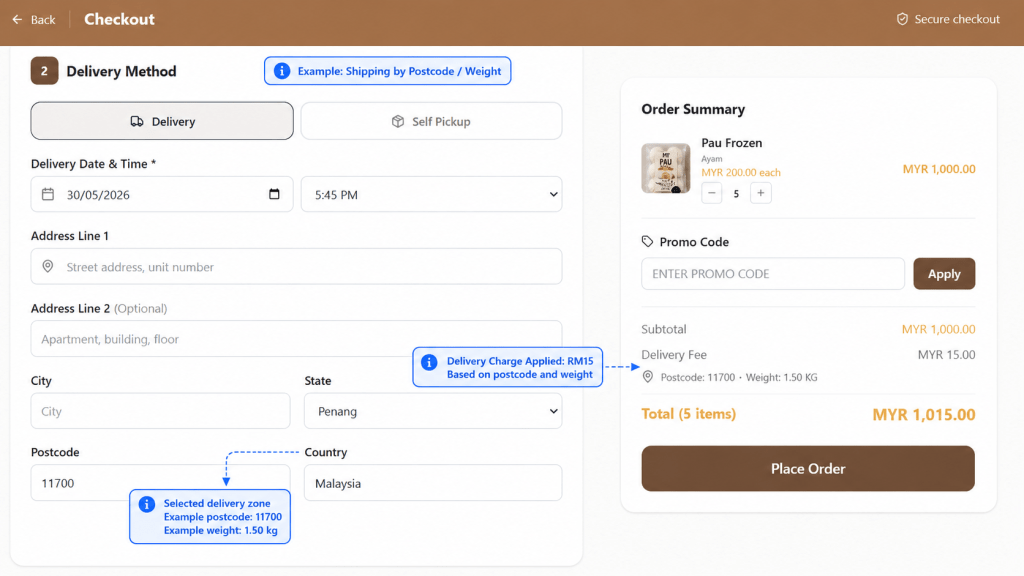

Postcode / Weight Shipping allows you to charge shipping fees based on the customer’s postcode and the total product weight in the order.
This method is suitable if your delivery fee depends on delivery zones or postcode areas. For example, you may charge different rates for different postcode ranges within Malaysia.
Important: Before using this shipping method, make sure the product weight for each product has been updated correctly. Missing or incorrect product weight may cause the shipping fee to be calculated incorrectly.
To set up Postcode / Weight Shipping in your Store Default Profile: #
- Go to Settings > Shipping and Delivery.
- Under Shipping Profiles, click your Store Default Profile.
- You will be directed to the Edit General Profile page.
- Under Shipping Method & Rates, select Postcode / Weight.
- Click Add Rule.
- Fill in the required details.
- Click Add to save the rule.
- Once completed, click Save Changes on the main page.
Fill in the Postcode / Weight Rule #
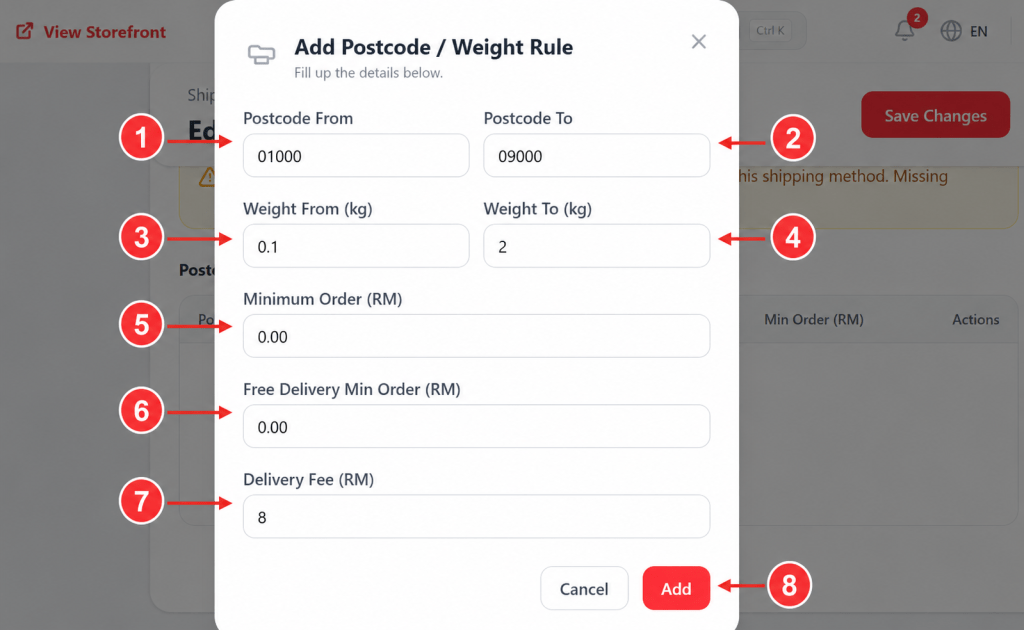
When adding a Postcode / Weight rule, complete the following details:
| Field / Action | What to fill |
|---|---|
| 1. Postcode From | Enter the starting postcode range for this rule. Example: 01000 |
| 2. Postcode To | Enter the ending postcode range for this rule. Example: 09000 |
| 3. Weight From (kg) | Enter the starting product weight range for this rule. Example: 0.1kg |
4. Weight To (kg) | Enter the ending product weight range for this rule. Example: 2kg |
| 5. Minimum Order (RM) | Enter the minimum order amount required for this rule to apply. If there is no minimum order requirement, leave it as 0.00. |
| 6. Free Delivery Min Order (RM) | Enter the minimum order amount required for the customer to enjoy free delivery. If you do not want to offer free delivery, leave it as 0.00. |
| 7. Delivery Fee (RM) | Enter the shipping fee that will be charged to the customer when the order matches the postcode and weight range. |
| 8. Add | Click Add to save this postcode / weight rule. To add another rule, click Add Rule again and repeat the same steps. Once all rules are added, click Save Changes on the main page. |