

Billplz is a Malaysian payment gateway that allows merchants to accept online payments from customers, especially through FPX online banking. It is suitable for merchants who want a simple and affordable payment gateway option for their online store. Billplz also supports payment collection through dashboard, API, and integration options.
Once Billplz is connected to your JustOrder.Today store, customers can pay online during checkout. After payment is completed, the payment status will be updated based on the payment confirmation received from Billplz.
Before You Start #
Before connecting Billplz with JustOrder.Today, make sure you have:
- An active Billplz account
- Access to your Billplz dashboard
- The required Billplz integration details, such as API Key and Collection ID
- Access to your JustOrder.Today admin dashboard
If you do not have a Billplz account yet, you may register with Billplz first before continuing the setup.
if you already have an approved Billplz account, you may skip to STEP 4: Connect Billplz to Your Store
How to Apply for Billplz #
STEP 1 : Apply for Billplz #
From your admin dashboard, go to Settings > Payments.
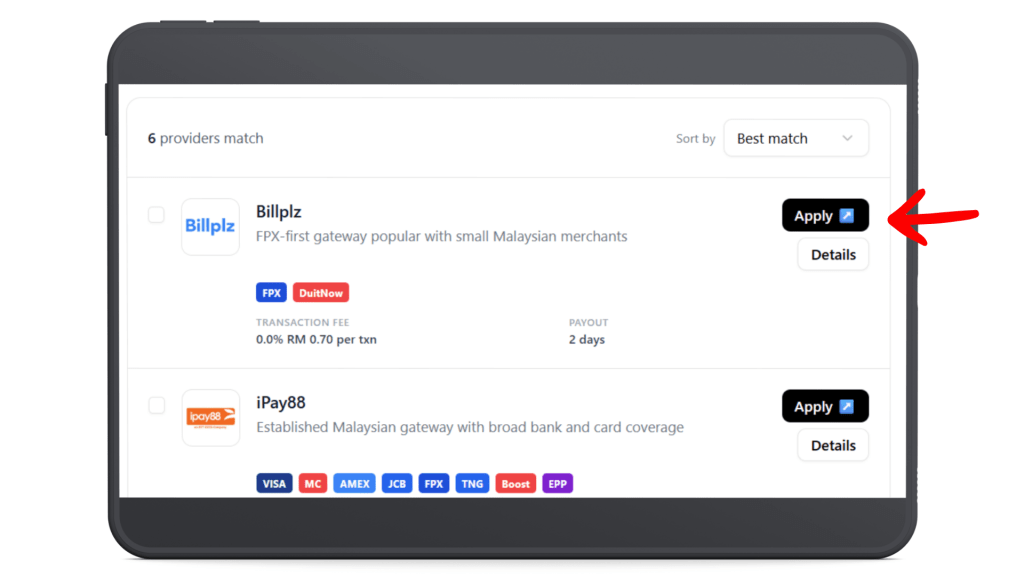
At the top of the Payments page, click Apply for Payment Gateway.
Under the list of available payment providers, find Billplz and click Apply (if you do not have a Billplz account yet and would like to create a new one)
STEP 2: Register or Log In to Billplz #
If you do not have a Billplz account yet, open the Billplz sign-up page below and create your account:
Billplz Sign Up:
https://sso.billplz.com/users/sign_up
or follow this step –> How to sign up for a Billplz account?
After registration, follow the instructions from Billplz to complete your account setup and verification.
If you already have a Billplz account, you may log in to your Billplz dashboard here:
Billplz Login:
https://sso.billplz.com/users/sign_in
Once your Billplz account is ready, prepare the required integration details from your Billplz dashboard, such as:
- API Key
- Collection ID
- Other payment collection details, if required
You will need to paste these details into your JustOrder.Today admin dashboard when connecting Billplz.
STEP 3: Wait for Approval and Activation #
After your application is submitted, the Billplz account will need to be reviewed and approved before it can be activated for your store.
The approval process usually takes around 3–4 working days, depending on the completeness of the submitted information and documents.
Once approved, the required connection or activation details will be provided.
STEP 4: Connect Billplz to Your Store #
Once your Billplz application has been approved, go to menu Settings > Payments in your JustOrder.Today admin dashboard.
Under the payment provider list, find Billplz and click Connect.
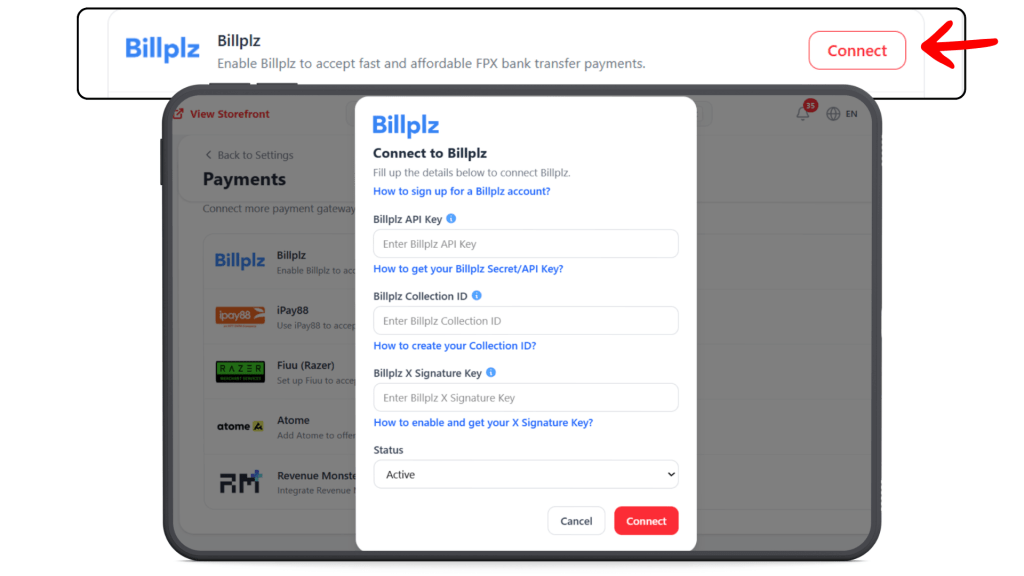
A pop-up form will appear. Fill in the required Billplz connection details.
Make sure all details are entered correctly to avoid connection errors.
Set the status to Active, then click Connect to complete the setup.
Once saved, customers will be able to make online payment during checkout using the payment methods supported by your Billplz setup.