

Product Variations are used when your product comes in different versions of the same item.
This is suitable when customers need to choose one version of the product, such as:
| Variant Type | Options |
|---|---|
| Size | S,M,L & XL |
| Colour | Black, White, Purple |
| Material | Cotton, Satin |
| Bottle Size | 30ml, 50ml, 100ml |
| Type | Hot, Cold |
Each variant combination can have its own price, stock, SKU, weight, status, and image.
How Product Variation works #
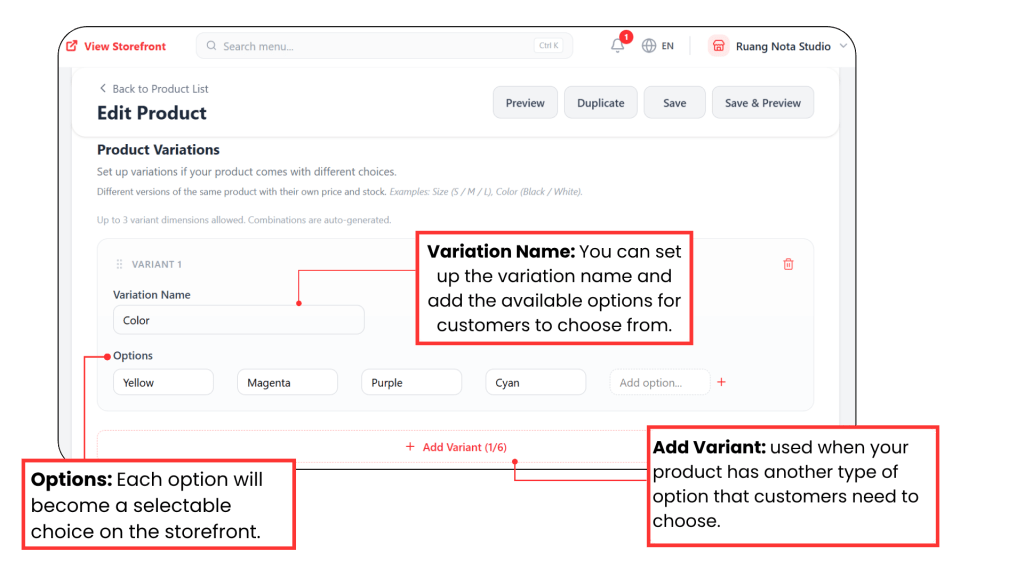
Variation Name
Example scenario: You are selling a thermos cup. The design and product type are the same, but customers can choose their preferred color. In this case, you can add Color as the product variation.
The available color options, such as:
Yellow | Magenta | Purple | Cyan
In this section, you can set up the variation name and add the available options for customers to choose from.
Use + Add Variant when the same product has more than one type of option. For example, if the thermos cup is available in different colors and sizes, you can add Color as Variant 1 and Size as Variant 2.
Variant Combinations:
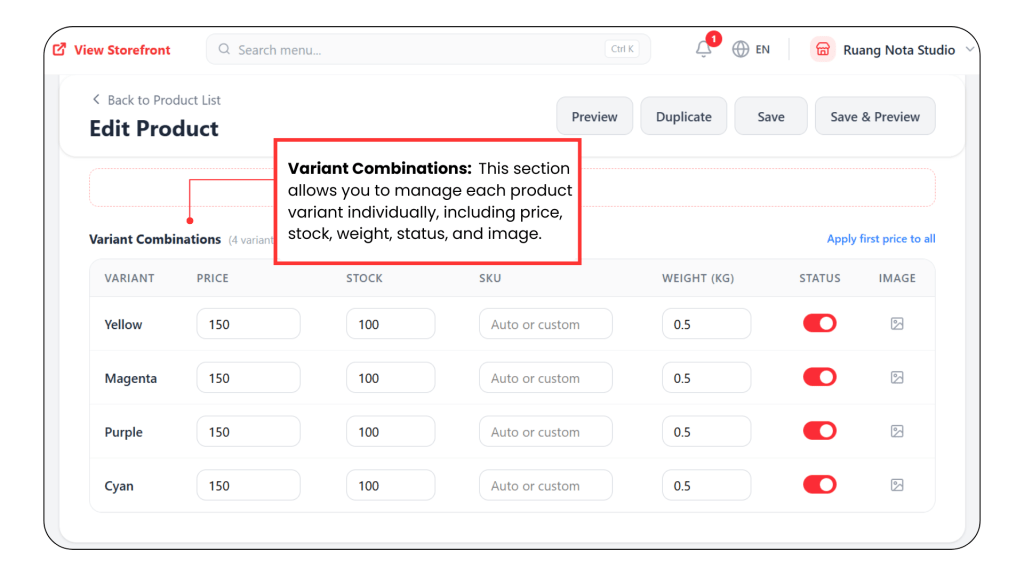
After you add the product variation, the system will automatically generate the variant combinations based on the options added.
Add Image for Each Variant
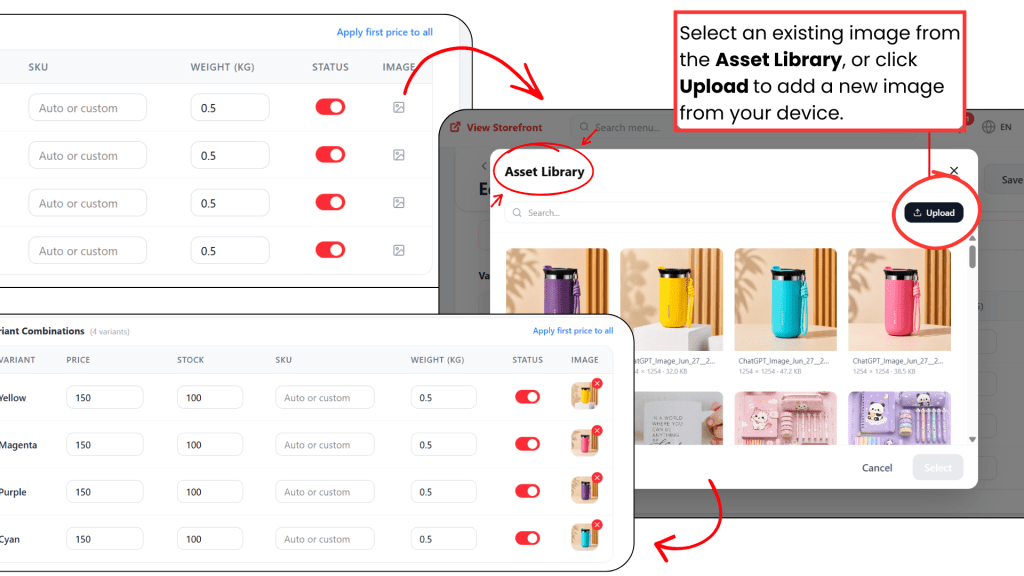
Click the image icon to upload or select an image for each variant. This image will be shown when customers choose that variant on the storefront.
You can select an image from the Asset Library or upload a new image from your device for each variant.
Once you have completed the variation setup, continue filling in the other required product details. After that, click Save to update the product.
How Product Variations Appear on Storefront #
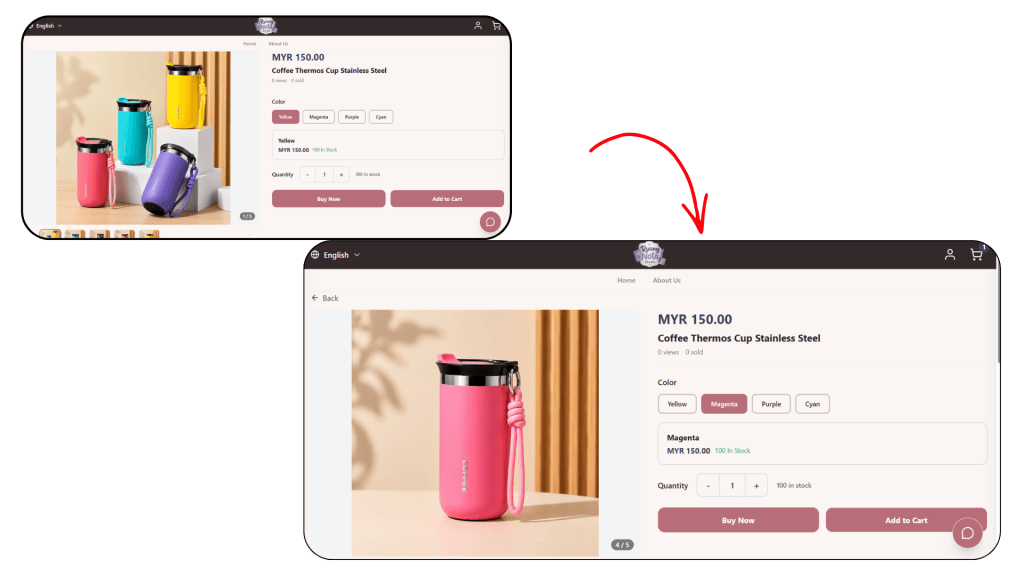
Web View
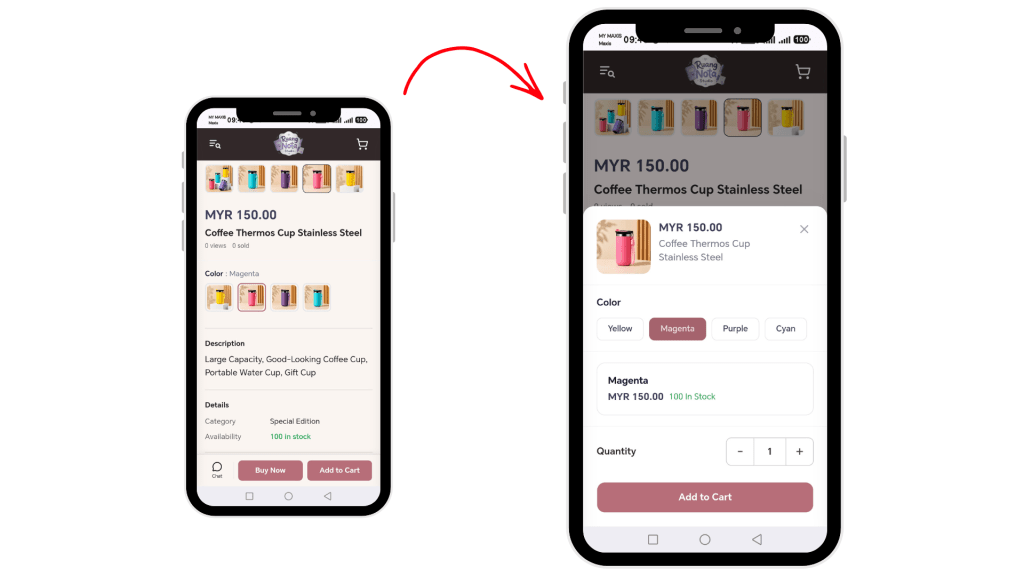
Mobile View
Customers can select their preferred variant on the storefront. The selected variant will display its own price, stock, and product image.