

STEP 1: Create Your Account #
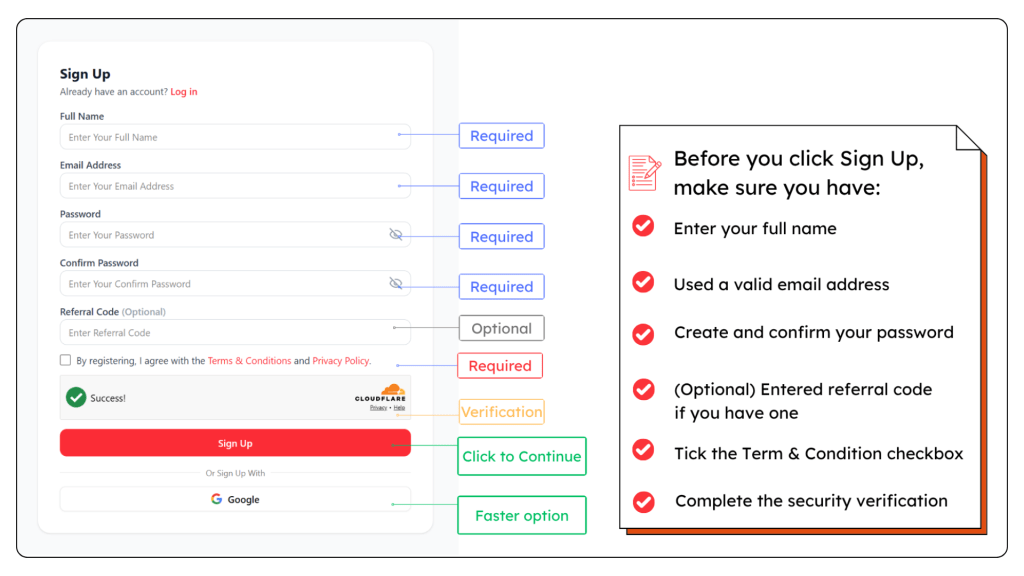
Let’s start your online store journey by creating your store account first. This account will give you access to your Admin Dashboard, where you can manage your store, add products, set up payment methods, and start receiving orders.
You can register your account here:
https://app.justordertoday.com/register
Just fill in the required details. Agree to Terms and Conditions and click Sign Up to continue. For a faster option, you may also Sign Up using your Google account by clicking the Google button.
What’s next?
By the end of this step, your store account will be created and you can continue to the Step 2 Set Up Your Store Details.
STEP 2: Set Up Your Store Details #
Now it’s time to bring your store to life!
This is where you create the basic profile for your online store. Add your store name, contact number, business category, store URL, currency, timezone, and storefront language.
Your store URL will be the link customers use to visit your online store, so choose a name that is simple, clear, and easy to remember.
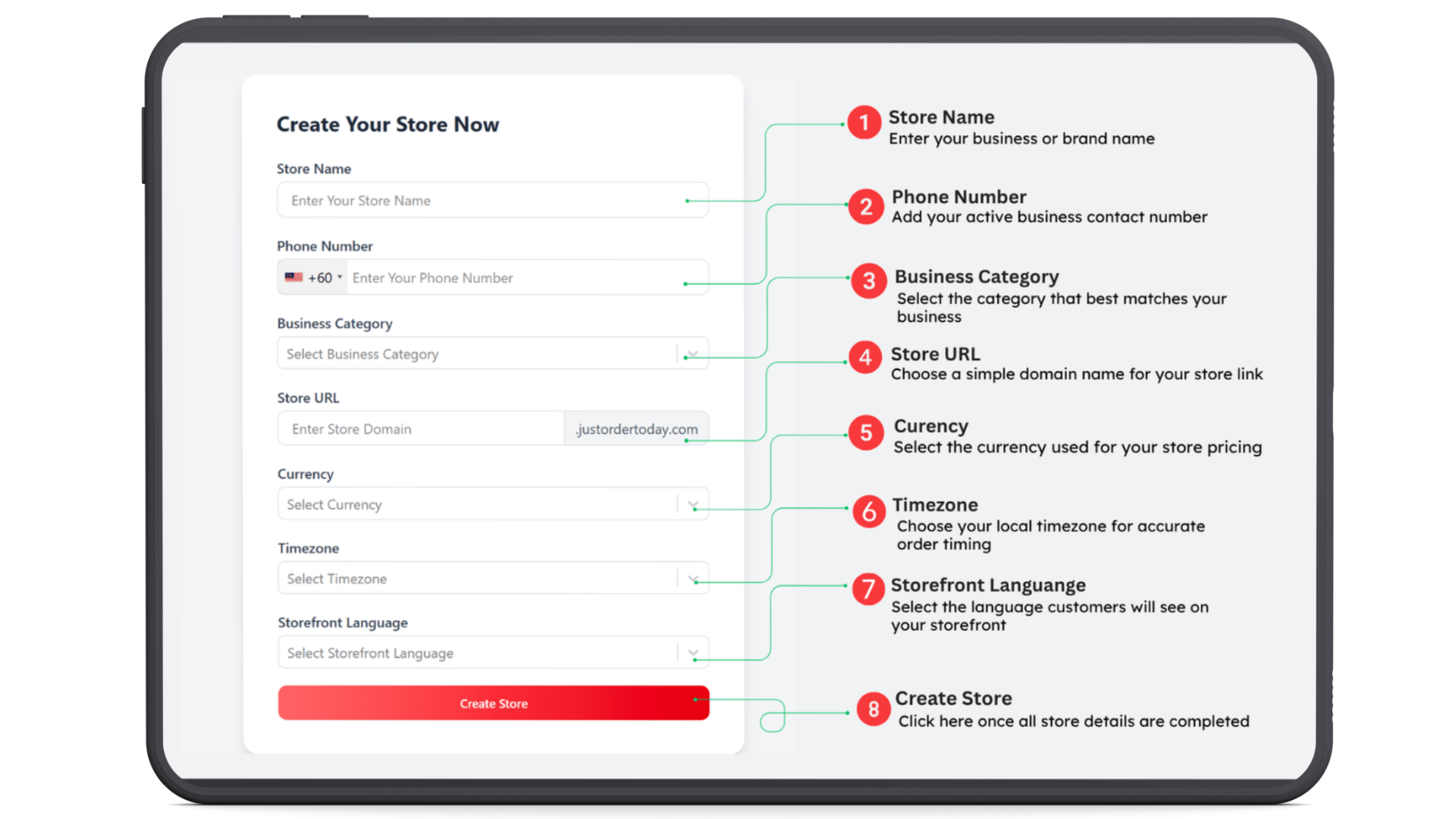
Once done, click Create Store and your store is ready for the next step.
By the end of this step, your store profile is created and you can start to Add Your First Product
STEP 3: Add Your First Product #
Now it’s time to add your first product. Don’t worry, we’ll keep it simple first!
To get started go to > Product > click +Add Product
At this stage, you don’t need to complete every single setting. Just focus on the must have details to make sure your first product can be created, displayed properly, and ready for customers to view in your store.
Let’s follow the simple checklist below. You may also click here to view the detailed step-by-step guide on how to set up your product.
If your product has additional options, you can set up these features later:
Product Variations Guide | Product Modifier Guide | Product Add-On Guide
Once the basic details are completed, click Save.
Now that your first product is ready, let’s move to the next important step.
STEP 4: Choose Your Payment Method #
Now let’s make sure your store can accept orders like a real online store.
To get started, go to menu: Settings > Payments
For this step, you can enable Cash on Delivery (COD) and Manual Bank Transfer first. These two options are simple, quick to set up, and perfect for getting your store ready during the trial stage.
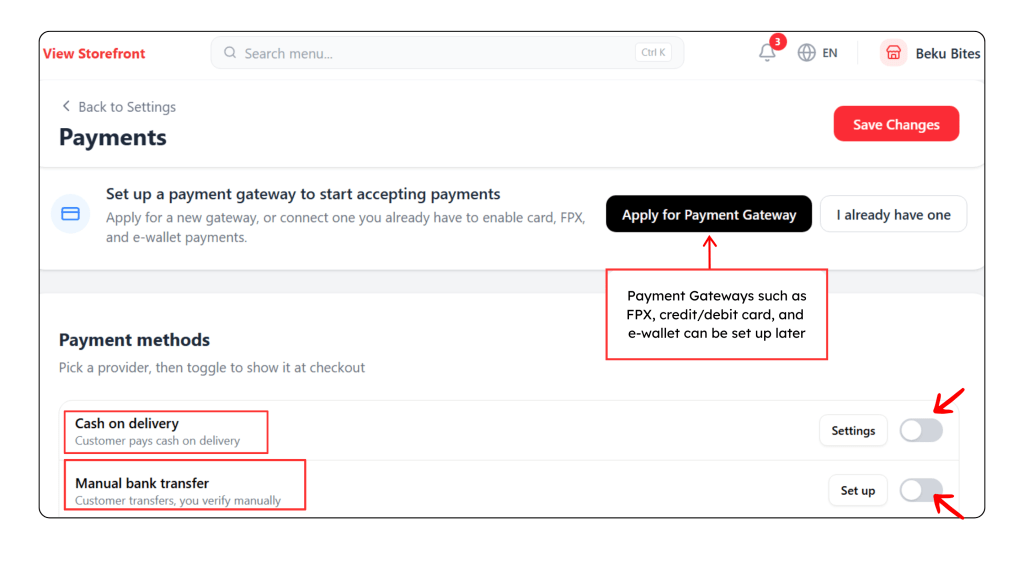
By the end of this step, your store will have payment options available at checkout, so customers can place their order smoothly.
Now! Let’s go the next step Place an Order via Your Storefront.
STEP 5: Place an Order via Your Storefront #
Now that your store is ready, let’s place an order through your storefront. This step helps you understand the buying journey from your customer’s point of view from browsing products to placing an order.
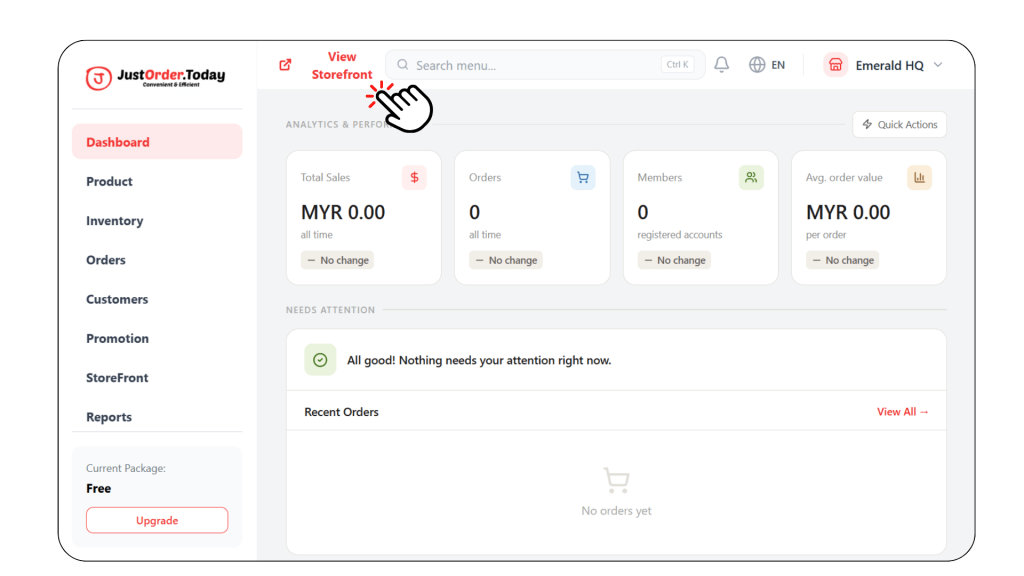
Click View Storefront to experience it now and place your first test order now!
💡Another way to received orders is by using Order Form.
With Order Form, you can create a direct ordering link and share it with customers for quick sales, campaigns, or single-product promotions.
STEP 6: Create Your First Order Form #
Let’s unlock another easy way to sell!
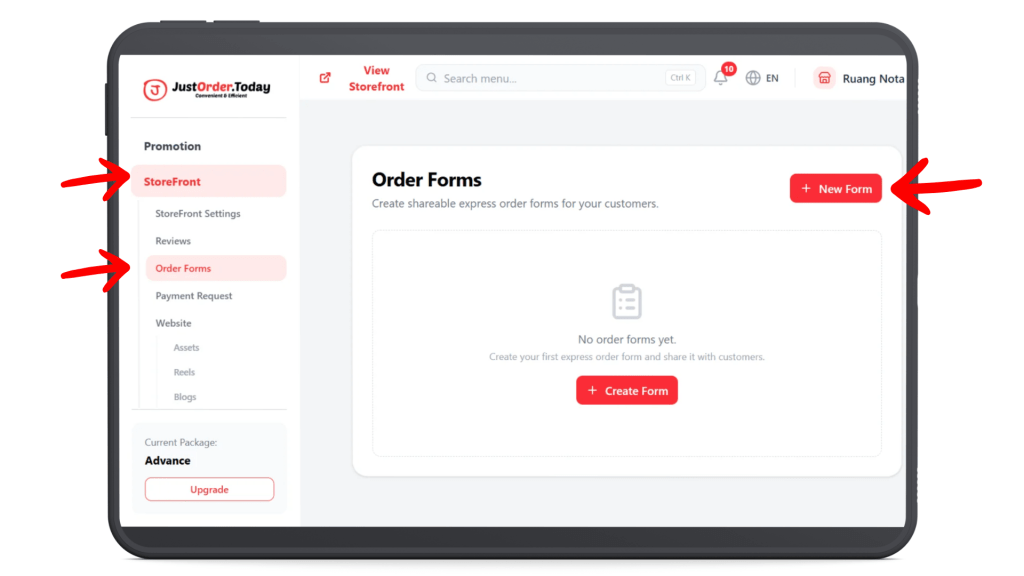
Go to menu StoreFront > Order Forms, then click + New Form button to create your first Order Form.
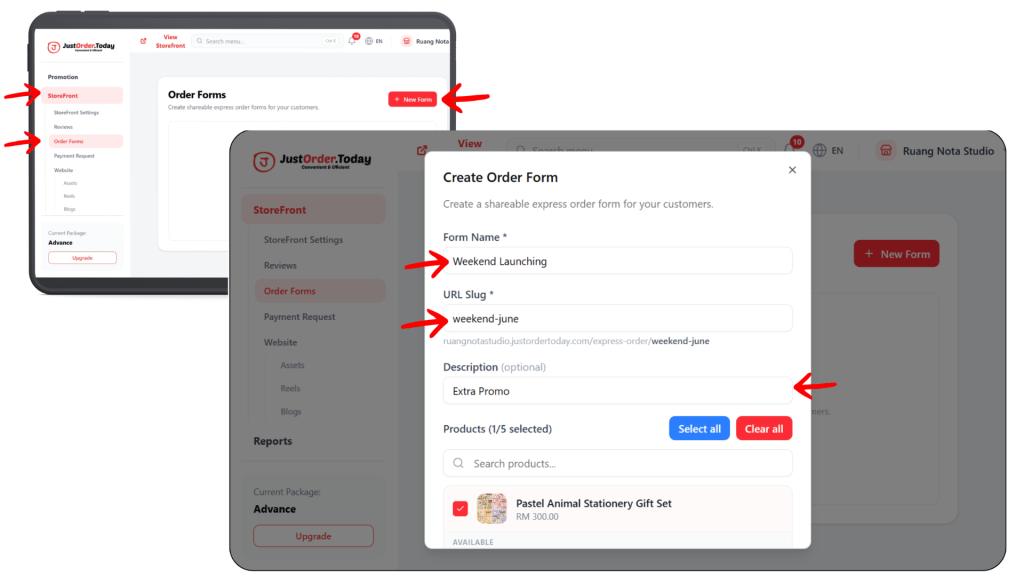
Enter the form name, URL slug, and description.
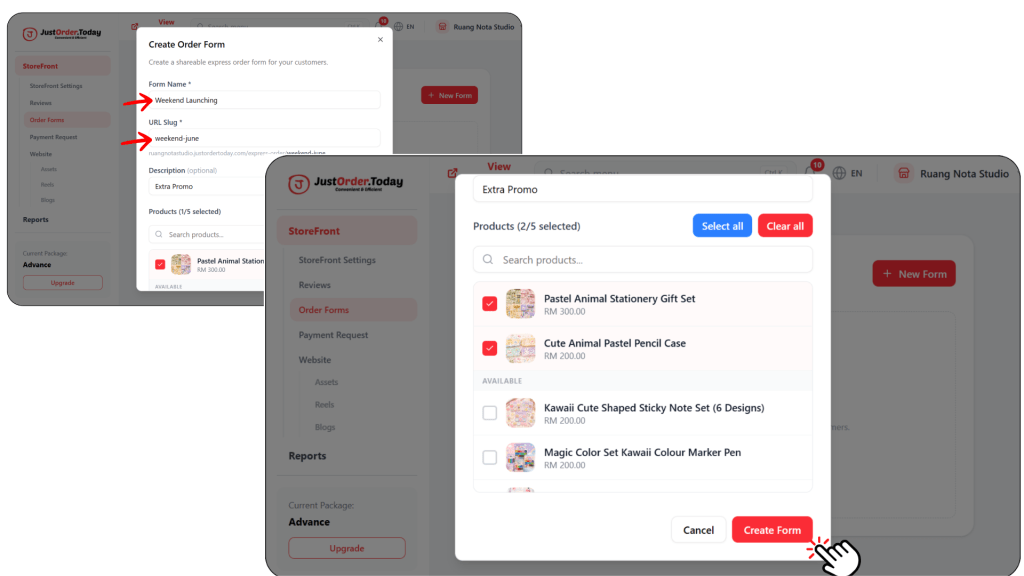
Select products and click Create Form.
Copy or open the Order Form link to share with customers.
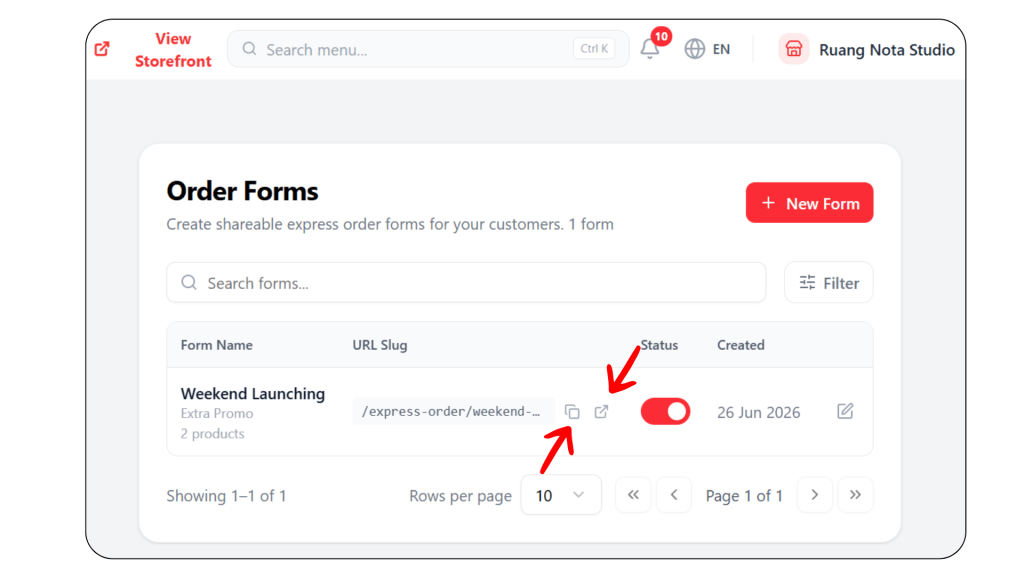
With Order Form, you can create a direct ordering link and share it anywhere perfect for WhatsApp, social media campaigns, or quick product promotions.
STEP 7: Share Your Order Form Link #
Your Order Form is ready to go! Copy the form link and share it with your customers through WhatsApp, social media, or any sales channel.
Customers can open the link, view the product, fill in their details, choose their payment method, and place an order easily without browsing the full storefront.
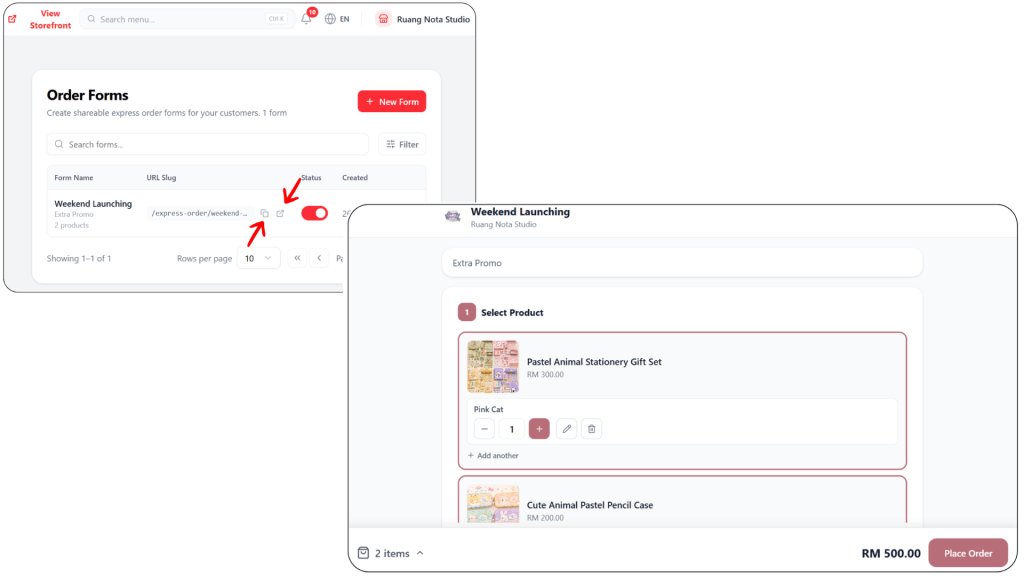
This is perfect for quick sales, campaigns, single product promotions, or when you want to guide customers straight away to checkout.
You’ve Completed Your Quick Store Setup! #
Your store is now ready to receive orders.
You can start sharing your Storefront link or Order Form link with customers.
Next, you may continue improving your store by setting up more features!
What You Can Set Up Next #
- Set Up Payment Gateway
- Accept FPX, credit/debit card, and e-wallet payments.
- Accept FPX, credit/debit card, and e-wallet payments.
- Configure Shipping Settings
- Set up delivery rates or connect with available shipping partners.
- Set up delivery rates or connect with available shipping partners.
- Product Options
- Add variants, add-ons, or modifiers to give customers more choices.
- Add variants, add-ons, or modifiers to give customers more choices.
- Create Promotions & Discounts
- Create campaigns, vouchers, or discounts to boost sales.
- Create campaigns, vouchers, or discounts to boost sales.
- Customise Your Storefront
- Update your store design, banner, and product arrangement.