

Payment Method is where you manage how customers can pay for their orders at checkout.
Once activated, customers will be able to choose from the available payment methods when placing an order.
In general, payment methods can be grouped into three main types:
Manual Bank Transfer #
Manual Bank Transfer allows customers to transfer payment directly to your bank account after placing an order.
This payment method is suitable if you want to receive payment manually without using a payment gateway. It is also useful for customers who prefer to pay using their own banking app, ATM transfer, or QR code instead of using an online payment gateway.
Once the customer has made the payment, you will need to check and verify the payment before processing the order.
Steps to Set Up Manual Bank Transfer #
- From your admin dashboard, go to Settings.
- Click Payments.
- Under Payment methods, find Manual bank transfer.
- Click Set up.
- Fill in your bank details:
- Bank Holder Name
- Bank Account Number
- Bank Name
- Upload your bank account QR Code Photo if available.
This is optional, but recommended. Customers can scan the QR code to make payment more easily. - Upload the required documents, if needed:
- Agreement Contract
- SSM Documents
- NRIC Photo
- Click Submit.
- Once submitted, enable the toggle for Manual bank transfer.
Click Save Changes.
Manual Bank Transfer will now appear as one of the payment options during checkout.
Important Note
Payment made through Manual Bank Transfer is not verified automatically by the system. You need to check your bank account or payment proof manually before confirming and processing the order.
Cash On Delivery #
Cash on Delivery allows customers to pay for their order when they receive the item, instead of making payment during checkout.
This payment method is suitable for merchants who want to offer a simple payment option, especially for customers who prefer to pay only when the item is delivered or collected.
This is different from Manual Bank Transfer, where customers need to transfer payment first before the order is processed. For Cash on Delivery, customers pay later when they receive the item or collect the order.
Steps to Set Up Cash on Delivery #
- From your admin dashboard, go to Settings.
- Click Payments.
- Under Payment methods, find Cash on delivery.
- Click Settings.
- If needed, tick Limit Cash On Delivery for Self Pickup only.
Enable this setting if you only want customers to use Cash on Delivery when they choose Self Pickup. - Click Done.
- Enable the toggle for Cash on delivery.
- Click Save Changes.
Cash on Delivery will now appear as one of the payment options during checkout.
Important Note
For Cash on Delivery, payment is not collected through the system. The merchant needs to collect the payment directly from the customer during delivery or when the customer picks up the order.
Payment Gateway #
Payment Gateway allows customers to make online payment during checkout using supported payment methods such as FPX online banking, credit or debit card, e-wallets, and other available options.
This payment method is suitable for merchants who want to accept online payments automatically through a payment provider. Unlike Cash on Delivery or Manual Bank Transfer, customers can complete their payment directly at checkout.
To use Payment Gateway, you need to either apply for a new payment gateway account or connect an existing payment gateway account that you already have. Payment gateway integration usually requires account approval and setup details such as API key, merchant ID, secret key, or other credentials provided by the payment gateway provider.
In JustOrder.Today, merchants may use available payment gateway providers such as:
- Revenue Monster
- Billplz
- Fiuu
- Stripe
- iPay88
- Atome
Each provider may support different payment services, transaction fees, and payout periods. Merchants can review the available options and select the provider that best fits their business needs.
How to Apply for a Payment Gateway #
- From your admin dashboard, go to Settings.
- Click Payments.
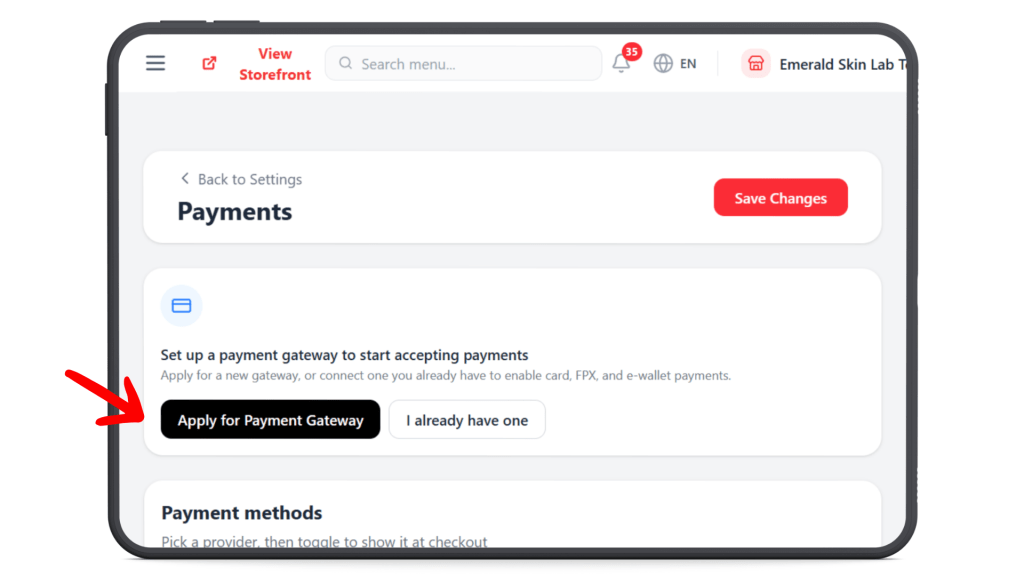
- In the payment gateway section, click Apply for Payment Gateway.
- Browse the available payment gateway providers.
- Use the filter option, if needed, to find a provider based on your preferred payment services.
- Click Apply beside the provider you want to use.
- Complete the required application details.
- Submit your application.
Once your application is approved, the selected payment gateway can be activated and used as one of the payment options during checkout.
If You Already Have a Payment Gateway Account #
If you already have an existing payment gateway account, click I already have one from the Payments page.
You may then proceed to connect your existing provider account to JustOrder.Today. Depending on the provider, you may need to enter the required credentials or account details, such as Merchant ID, API Key, Secret Key, or other setup information.