
How to Set a Purchase Limit for Products 

The Item Purchase Limit feature allows you to limit how many units of a product a customer can purchase within a selected period.

This is useful when you want to control limited stock items, prevent bulk purchases, or make sure more customers have a chance to buy the same product.

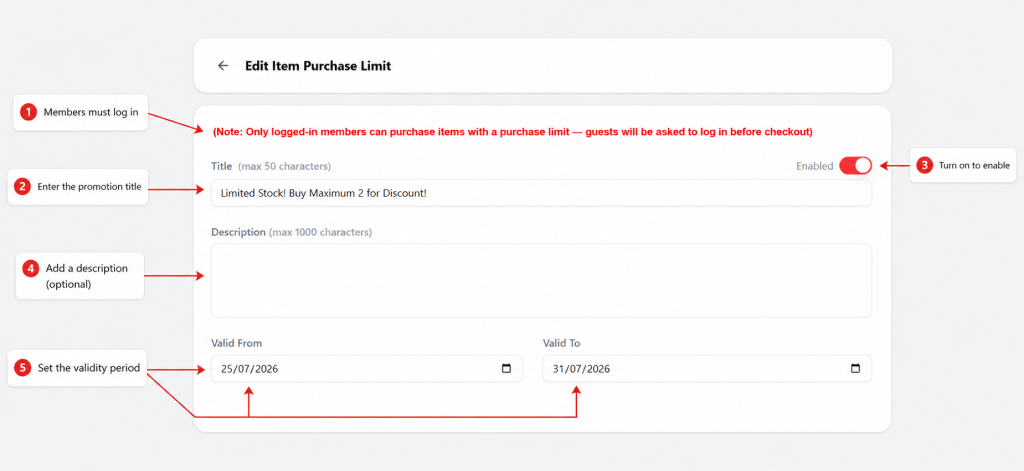
Note: Only logged-in members can purchase items with a purchase limit. Guest customers will be asked to log in before checkout.

For example, you want to limit customers to purchase only 3 units of Emerald Strawberry Cream Body Lotion during your campaign period.

Once the limit is set, each customer can only purchase up to 3 units of that product.

Example:

Product: Emerald Strawberry Cream Body Lotion
Purchase limit: 3 units per customer
Customer already purchased: 1 unit
Remaining quantity customer can buy: 2 units

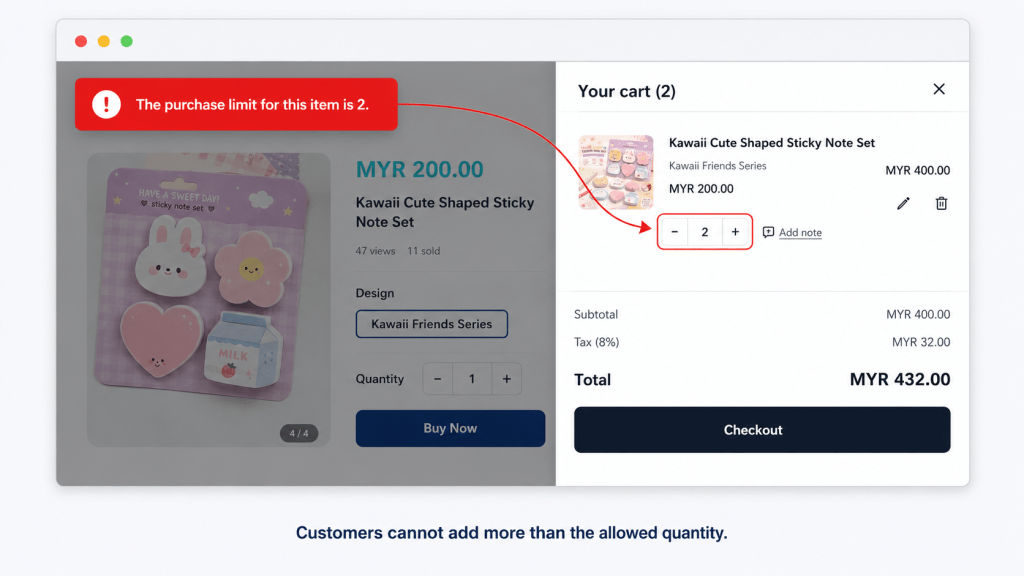
If the customer tries to add more than the allowed quantity, the system will display a message to inform them that the purchase limit has been reached.
<<<<Graphic>>>> 

Customer selects product → Limit is 3 units → Customer tries to add more → System shows purchase limit message

Step 1: Go to Item Purchase Limit #

From your admin dashboard, go to the Item Purchase Limit page.

You will see the list of purchase limit rules that have been created.

To create a new rule, click + Create.

<<<<Graphic>>>> 

Step 2: Enter the Purchase Limit Details #

You will be redirected to the New Item Purchase Limit page.

Fill in the basic details for your purchase limit rule:

  • Title : Enter a name for the purchase limit rule.
    Example: Limit 3 Bottles Per Customer
  • Description : Add a short description to explain the purpose of this rule.
    Example: Customers can only purchase up to 3 units of this product during the campaign period.
  • Status : Make sure the status is set to Enabled if you want the purchase limit to be active.

<<<<Graphic>>>> 

Step 3: Set the Validity Period #

Set the promotion start and end date, The discount will only be available within the selected date range.

<<<<Graphic>>>> 

Step 4: Choose What You Want to Limit #

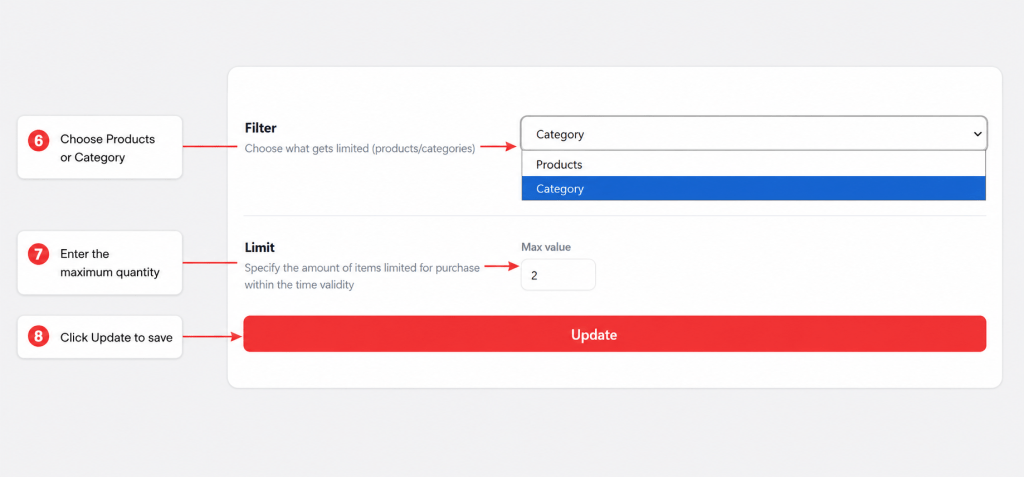
Under the Filter section, choose whether you want to apply the purchase limit to:

  • Products : Use this if you want to limit selected products only.
  • Category : Use this if you want to limit all products under a selected category.
  • Example: Choose Products if you only want to limit one specific lotion product.

Choose Category if you want to limit all products under the Body Lotion category.

<<<<Graphic>>>> 

Step 5: Select the Product or Category #

After choosing the filter type, select the product or category that you want to limit.

  • If you choose Products, select the product from the product list.
  • If you choose Category, select the category from the category list.

<<<<Graphic>>>> 

Step 6: Set the Maximum Purchase Quantity #

Under the Limit section, enter the maximum quantity allowed in the Max value field.

Example: If you enter 3, each customer can only purchase up to 3 units of the selected product within the validity period.

<<<<Graphic>>>> 

Step 7: Save the Purchase Limit #

Once all details have been filled in, click Save.

Your purchase limit rule will be created and applied based on the selected product or category, maximum quantity, and validity period.

<<<<Graphic>>>> 

Before launching, it is recommended to test the promotion on your storefront to make sure the discount amount is correct.