

Order Discount allows you to give a discount based on the customer’s total order amount at checkout.
This promotion is useful when you want to encourage customers to spend more, reward selected customers, or run a storewide campaign without applying discounts to individual products one by one.
How It Appears at Checkout #
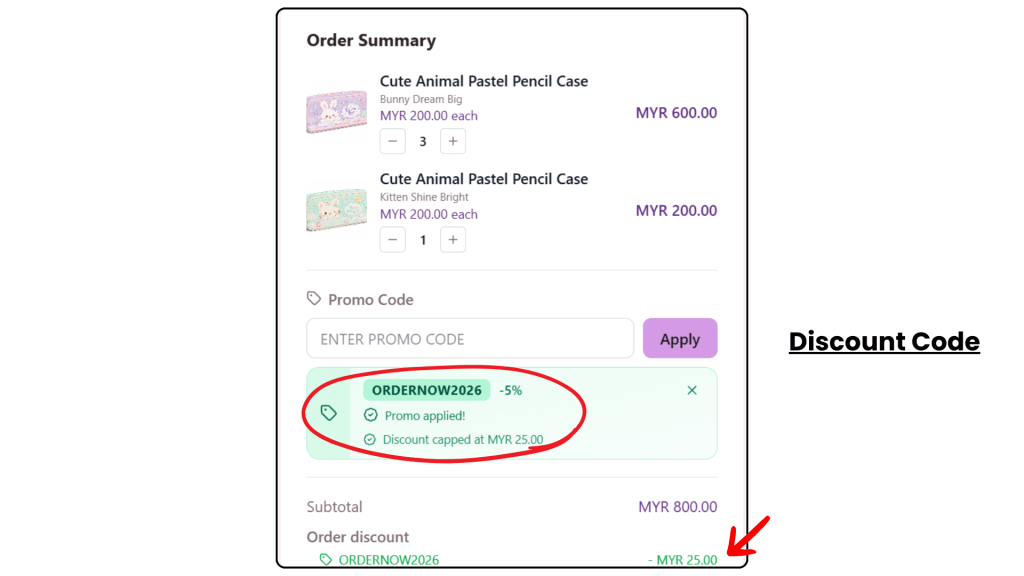
Discount Code
Customers must enter the promo code and click Apply. Once successfully applied, the discount amount will appear in the Order Summary.
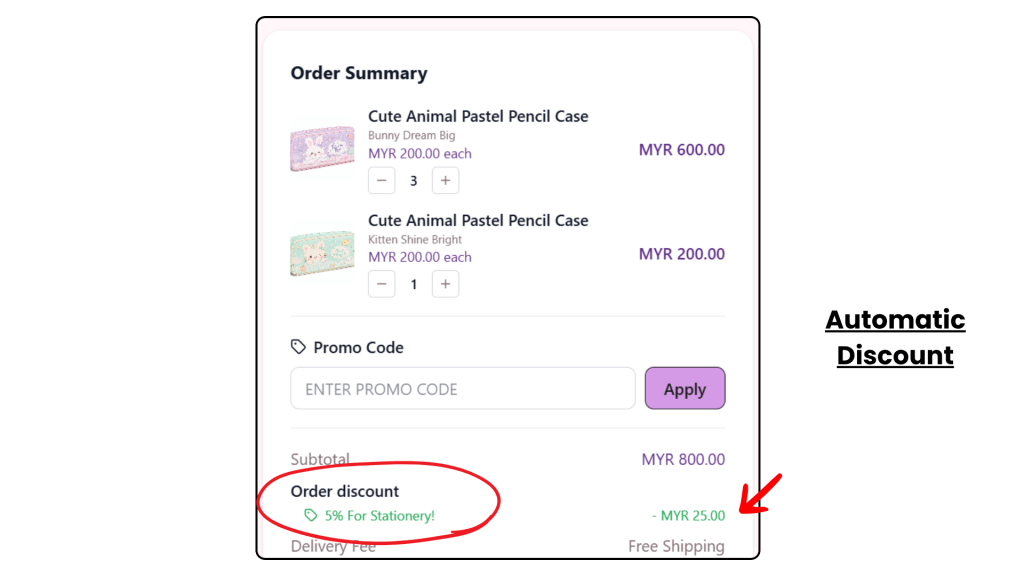
Automatic Discount
When the order meets the requirements, the discount will appear automatically under Order discount in the Order Summary.
Set Up an Order Discount #
Go to your admin dashboard, go to the Promotion section > select Order Discount > Click + Create to create a new order discount.
Choose the Discount Method #
Under Method, choose how customers can receive this order discount.
You can select either:
- Discount Code : Choose this if you want customers to enter a promo code at checkout.
Example : RAYA10 - Automatic Discount : Choose this if you want the discount to apply automatically when the cart meets the conditions.
Example : Spend RM100 and get 10% off automatically.
Enter the promotion title and description, then make sure the promotion is Enabled.
Set the Discount #
If you select Discount code, enter your own code or click Generate to create one automatically.
Choose the Discount Type
There are three discount types available:
- Percentage off subtotal : Deducts a percentage from the eligible subtotal
- Fixed amount off subtotal : Deducts a fixed amount from the eligible subtotal
- Tiered discount : Offers different discounts based on how much the customer spends
For percentage discounts, you can also set a maximum discount cap.
Example: A 5% discount capped at RM25 means the maximum discount customers can receive is RM25.
Exclude Products, If Needed #
Under Exclude products, choose whether any products should be excluded from this order discount.
You can select:
No exclusions
The discount applies to the full cart subtotal.
Exclude specific products
Selected products will not receive this discount or count toward the subtotal.
This is useful if you want to exclude items such as gift cards, clearance products, or products that already have another discount.
Set the Promotion Requirements #
Under Minimum requirements, choose when this discount should apply.
You can select:
No minimum
The discount applies to every order.
Minimum subtotal
The discount only applies when the cart subtotal reaches a certain amount.
Example: Minimum subtotal: RM100
This means customers must spend at least RM100 before the order discount can be applied.
Set Usage Limits and Validity Period #
You can control:
- Total number of times the promotion can be redeemed
- Number of redemptions allowed per customer
- Promotion start and end dates
Enter 0 if you do not want to set a usage limit.
Allow Promotion Combinations #
Under Combinations, choose whether this order discount can be combined with other promotions.
You can allow it to stack with:
Product-scope promotions
This allows Product Discount, Bundle, or Flash Sale promotions to apply together with this order discount.
Shipping discounts
This allows Free Shipping promotions to apply together with this order discount.
If you do not want this order discount to combine with other promotions, leave the options unticked.
After completing the setup, click Create Order Discount or Update Order Discount.
Important Notes #
- Only eligible products are included when calculating the discount.
- For an automatic discount, customers do not need to enter a promo code.
- If several Order Discounts are eligible, the system applies the winning promotion based on priority.
- Test the promotion through your storefront before sharing it with customers.